Showing posts with label Computer Tips. Show all posts

Tuesday, March 4, 2014

A Free Online Tool for Converting and Creating PDFs

Posted by Technology Cracks
                                                PDF is probably the most used file format in the business world today. It’s a convenient format for business purposes because it is a universal file format that looks the same no matter if you are viewing it on a Windows, Mac or Linux operated computer. It’s also a very compact file format, which makes it ideal for sending and receiving information. The compactness of the file format also makes the PDF a popular choice for archiving files.

The one big problem PDFs have is that they are not editable. So if you ever receive information as a PDF that you need to use and manipulate further, you are going to have to extract this information from the PDF and convert it into another, more usable file format.


While there are many PDF conversion tools on the market available both as downloadable software and online solutions, there are not many that are free. PDFConverter.com is a service that does offer completely free and accurate PDF conversions, however.
With this great online tool, users can convert their PDFs into more editable formats such as Microsoft Word, Excel and PowerPoint. On top of that, this service can also be used to convert just about any type of file into a PDF. Here are some of its most prominent benefits:

Nothing to download or install

The convenience of this tool lies in the fact that the entire process is handled online from your browser. There is no need to download or install any conversion software. This also protects you from various viruses and malware that many downloadable free tools often come with.

Accurate conversions despite being free

Even though the service is free, the conversions are still top notch. Once converted, the files will mirror the formatting of your original file, which will save you a lot of time. You won’t have to spend time editing your converted files further in order to get them to look right.

All it takes is three easy steps

Every one of the four conversions offered can be done in three easy steps.
1. Select the file you want to convert from your computer.
2. Enter your email address.
3. Click “Start” to convert the file.
And that’s all there is to it. Once your file is converted, an email will be sent to the address you have inputted. There will be a download link in the email, which you will be able to use to download your newly converted file to your computer.

Privacy is guaranteed

The service guarantees that your email information will never be given or sold to third parties. On top of that, all of your files will be deleted from the server after a period of 24 hours. Just make sure that you download your converted files within that 24-hour window.
For anyone who is looking for a free service that lets you convert PDFs into more editable file formats such as Word, Excel and PowerPoint - but also create PDFs from a vast variety of file types - these four free PDFConverter.com tools should do nicely.

Read More

Monday, February 17, 2014

Best 10 Hidden Features of Windows 8

Posted by Technology Cracks 2 Comments
Now days so many people think that Windows 7 is better than Windows 8.But I shortlisted why Windows 8 is better compared to Windows 7.Windows 8 is the latest version that was released from Microsoft. It adds more features and I listed some of the Features that are existed in Windows 8.

  Hidden start menu


        So many people are shocking that where is start button in Windows 8.But there exists an Hidden Start button .It provides many Options like Device manager, Disk Management etc..,.
Actually it’s not a start button it’s a shortcut using Win+X.


  Easy Screenshot

In windows Image capturing is done very easily by simple Pressing Win+Prtscr it automatically saves as PNG files.

   Fast booting Time

               In windows 7 the minimum boot time is 1 minute. But whereas for Windows 8 the boot time is less than 20 seconds. This is called as hybrid boot.
This is the excellent feature that was developed by Microsoft. Even whenever you shutdown It takes less than 10 seconds and in the same way for start-up it takes less than 20 seconds.

  Improved Task Manager      


     The task manger of windows 7 was vanished and added much more information in Windows 8.It added the performance like CPU usage, Memory Usage, Disk Usage, Bluetooth Usage, Ethernet Usage and Wi-Fi Usage.

  Synchronize your settings 

                     If you are using the Microsoft Live account you can directly synchronize the personalisation settings and other Windows settings with your online account. These settings can also be synchronised by Multiple PC’s.


  Excellent File Transfer               

          Windows 8 takes very less time for transferring files compared to Windows 7.In windows 8 the transfer rate is around 20MB/sec.
This is also one of the best features of Windows 8.               

  Inbuilt PDF Reader              

          Windows 8 provides Default PDF Reader which helps not to install any other third party softwares like Adobe Reader etc..

  An Excellent Option of Reset and Refresh


    This is one of the feature that was existed in Windows 8 which is not existed in Windows 7.Reset and Refresh are two options that are existed in Windows 8.
Refresh: 
              If your PC is not  working Properly then you use this option .
Reset:
   Reset is nothing but removing all the apps from the PC and again reinstall Windows without the OS CD.

  Inbuilt Anti-virus and Anti-spyware

         Why to use third part Antivirus? It’s better to use the Microsoft Security Essentials if you are using Genuine Windows 8.It has some better advantage if any other third software like Avast or Avira is installed automatically Microsoft Security Essentials will be automatically turned off .It is the best advantage.
    
Disadvantage of using more than one anti-virus.
     
    One software file (Avast software file) detects another software file(Avira software file) as Virus and both will crash and finally No anti-virus works for your PC.

  Mounting ISO files without using any third party software

       In windows 8 there is a special feature.you can view /mount ISO files directly without using any other external software. Whenever you just double click on ISO files it automatically creates a Virtual Drive.


         Drawbacks of Windows 8


1.  No start button. You can check out the post how I get thestart button in Windows 8
2.  Bluescreenof Death.Check out the Post to Fix Blue Screen of Death in Windows 8.
3.  Check out here toactivate Windows 8 using 7PMtech.

Read More

Saturday, November 30, 2013

Trace your Lost or Stolen Laptops and Smartphones- How to

Posted by Unknown 5 Comments

               Now a day’s laptops are very useful to students to learn new things and also for officers to do their work or job through laptops. So many professionals are going to store their entire project details and its information on their personal laptops. Even so many people like marketing agencies may have a chance of losing their jobs once you lost your laptop. What happens if your personal laptop is lost or stolen? Doesn’t worry  for every problem in the world has a solution. Are you worrying about losing your laptop then what you have to do is just install the tracking software on your laptop then it will trace its location if your laptop is lost or missing.


Note: You must and should install the prey software before your laptop has been stolen by someone or lost so it is very easy to trace your lost or stolen laptop.


you may give complaint to police to track your missing laptop or tablet or mobile phone.
But for doing this you must and should install this Prey Software. You can download the Prey software from here by clicking image or the link given below.

 Download here

             
                                                                      Download Link


It Supports for Windows, MAC, Android, iOS.

Steps to trace a missing laptops


1.After downloading Just select New User and Click on Next.


2. Afterword’s enter your contact details like name, email address, password and computer name and click on create.


Then it shows a message as shown in below
“Account created! Remember to verify your account by opening your inbox and click on the link we sent to your email address”

4. After clicking the link it will show you the Dialog box as shown below
“Configuration updated!  Your device is now setup  and being tracked by Prey .Happy hunting.
Once your account is activated it will start tracing your devices when you changed setting as MISSING in the control panel.


You may login to their account and open control Panel and manage all settings

Click on Save to save all settings. If you want to trace your laptop then just change from OK to Missing Option in Prey Control Panel. After few minutes It will show  you the location.


Whenever your missing laptop is connected to the internet it will also show their Photo and also Desktop screen. Desktop Screen is also used to keep track of email accounts or facebook id details or any other details  of the person.
Just check out these Snapshots to know More detailed.
It will trace out the location and his image along with first connected webpage whenever he connects to internet.Through we can find out the Email address or username .

  share this to your friends until to take precaution before going to lose a laptop
Read More

Tuesday, November 26, 2013

How to Increase laptop battery Life

Posted by Unknown
Now a days battery life is very important for those who are working outside frequently.For Example if you are going to some place if you need more  battery time for doing some work then what to do ? So you must and should follow these guidelines to extend your battery life.
Increase battery life of a laptop


#1.Reduce your Screen Brightness

      According to my point of view the biggest power drop is due to screen brightness. So reduce the Brightness to lower level that you are comfortable to do work. No need to sacrifice your eye for the sake of just half an hour extra battery. But my suggestion is to reduce screen brightness as much as you are willing to do work.
Reduce the Screen brightness


#2.Try to decrease the volume while listening music

      Reduce your sound  volume  instead of keeping maximum Sound. Even when you are using Head phones try to reduce it also helps you in hearing also.
Reduce sound volume.listening music


#3.Turn off Bluetooth and Wi-Fi 

            Modern devices are searching automatically for  Wi-Fi signals and Bluetooth Devices. Turning off your Bluetooth and Wi-Fi also helps you in extending battery life if you are not using Wi-Fi and Bluetooth.

Turn off Wi-Fi


#4.Don't use USBs and DVDs when there is no use

  You must and should make the ports empty when not in use. If you are not  using wireless mouse or keyboard then remove  adapters to the ports it also extends battery life.
  DVD’s should also be removed when not in use.
Remove USB's


#5.Make use of a single window

           Close  all the unwanted programs which you are not goinig to use .Habituate to maintain a single window when you are doing a single work. It also extends your battery life.

#6.Don't use applications which take much RAM

     If you want to store simple information like phone number of some one or any information which will he useful for you  then use Notepad Rather than Microsoft Word because Microsoft Word takes much RAM.

#7.Keep away from extrem tempature places

   
     Make use of your laptops to use only in room tempatures  instead of Extreme temperature places.
maintain room temparatures


#8. Make use of Hibernate 

 If you are not planning to work for a time use hibernate instead of standby standby continuously wastes your battery time.

use of Hibernate

#9.ADon't use laptops on blankets

        Don’t place your laptops on pillows or blankets or any other soft surface because it produces more heat.better to  place your laptops on Desks.
laptops on Bklanket


Whenever battery is full unplug the charger

  You must and should unplug the charger whenever the battery is full and used it upto 80% and then start plugging the charger.


#Advice

 If you use your laptop for too long it could overheat and slowly damages the components and it also makes less  life time.    

Read More

Monday, November 25, 2013

Top 10 Ways to access Blocked Sites on offices,Schools,College,Companies and other Public Places

Posted by Unknown
Are you getting Free Wi-Fi ? Then have you ever faced problem like “site is blocked”?
Actually in schools,colleges,Offices and companies  they provide free Wi-Fi but some of the sites are not accessed  or  it shows that “site is blocked”.

Then How to access the blocked Sites? Here I listed Top 10 Ways to access the Blocked sites.


#1.Using IP address


To get the IP address of a specific website just open command prompt and

Type command : ping domainname.com

Just replace the domain name with your blocked sitename like facebook.com
For Example :
         type ping facebook.com in the command prompt it shows the IP address as shown below.
IP address:173.252.110.27
Here type Ip address in the address bar it open automatically the facebook page.

Access blockes sites using Command Prompt


#2.Redirected Blocked Websites with URL shortners 

       Every one knows that URL shortners are used to make the long URL to short URL.Here URL shortner site allows you to bypass te security settings.
Here I listed some URL shortner sites.adf.ly and  adfocus.me Tiny URL,mooURL

#3.Using Decimal Code    

      Here in the First trick I told that If website URL is blocked then you can access using the IP address but if Ip address is also blocked means then you may use Decimal code.Decimal codes are nothing but conversion of IP address. You can also access blocked sites through the Decimal  number also. But to get Decimal number you must and should know the  IP address.you can convert the IP address to Decimal using this tool.

#4.Using Hola Extension

   Hola is a browser extension which allows you to browse internet anonymously.Hola browser extension is available for all the browsers. You may download the Hola extension from here.

#5.Using Google translate Service

         At present Google and bing providing a translation service converting webpage from one language to another language.To access this blocked site from the server just type the URl of blocked site which you want  to access and convert into any other languages.Using this translation service you can convert webpage into another language and access its content.

#6.Using WayBack Machine

    Wayback machine is an online service which is going to keep track of the copy of the websites from when it is started.Using this Website just enter URL and click on Date that’s it you can access that blocked website.If you are not getting clear idea.


#7.Reading the webpage via  Email the Web

   Email the web is a free service which sends directly to your mailbox.To get the webpage via Email then you need to register to the Email the Web site and enter the Website URl and enter email-address and you are completed.

#8.Using TOR Browser

       TOR browser is a browser which is going to browse anonymously .You may also use TOR browser to access the blocked site but you can’t access the facebook,twitter etc.. because  these sites need to store cookies in your browser So you can’t access the sites which  stores the cookies.you can download the TOR browser from here 

#9. Using VPN Service

           Using VPN is the best way to access blocked sites.It allows you to browse internet  anonymously ,just download and and install on your PC. There exists both paid and free version.  

                                          Download Free version from here

#10. Using Cached Pages

     Every website will have a cache on Google.To access that website through cache is very simple Just click on the  Cachedpages.com and enter your blocked  URL.It will display your Blocked Website from Cache.


Read More

How to get the Start Button in Windows 8

Posted by Unknown
          Are you a Windows 8 User? If yes then This Trick is absolutely  for you. Are you facing the problem of not having the start button in windows 8.Then You have reached the correct place. AtoZ Tricks  is here to solve your problem. We will make you to get the Start menu in windows 8 within Few Simple Steps. Windows 8 start button is completely Cloud Based, Mostly all the apps are shown in metro Graphical User interface method. Are you hating this approach then just follow my simple steps to get your old windows 7 start button

#How to get Start Button in Windows 8


1. Download the Start8 Software from here

2. After installation it will show you a Pop Up window as shown Below
Start button in Windows 8

 3.By Default It  will selects the Windows 8 flag as shown below.
Start Button in Windows 8


4.Do you want to change the the Style of Windows 8 Button then there is separate option Called Pick an  Image button  at the above screen shot .After click on Pick an Image it  will shown as  below screenshot Then you can change your Start button
Changing of Different Icons For start Button

5.Afterwords Start button will be appeared as shown in below screenshot.

This is simple way to get the start button and you customize your selected button as start button.
6.So many People are bothering that if I install the start Button then There is no chance of using apps through metro graphical user interface start screen.Don’t Worry This software includes a Option  called Windows 8 menu in the start button itself.For more details see below screen shot.

Windows 8 start button

7.If you Click on Windows 8 Menu It will show  the Windows 8 Start button with the tiles.

Sahre this until no one of your friends should miss this start button
Read More

Top 10 Tips to Improve your PC Performance and make your Computer Faster

Posted by Unknown
Are you really facing problems on slow processing on your system? Do you want ot make your computer faster then follow these guidelines to speed up your PC for better performance

#1.Increase the RAM

It’s Better to increase the RAM size because entire processing of a system is based on RAM. For an ordinary computer 1GB of RAM is enough. If you increase the RAM the speed is also increased.
increase the RAM


#2.Remove All Uncessary Softwares

      Just remove/Uninstall all unwanted software’s on your computer which are not used by you because whenever you install OS by default there exists a list of list of softwares installed on it.


#3.Use one Browser instead of All

If you are using more than one browser like Google Chrome, Mozilla Firefox, Internet Explorer, Safari and so many  it’s better to use one  or two . Remove all unwanted or unsed ones.

All Browsers,googl Chrome,Mozilla FireFox


#4.Use One chatting Messenger instead of All

 if you are using more than one chatting software’s like G-talk, yahoo messenger and so many its better to use one all in chatting messenger like Instant Messenger. 


#5.Reduce the Number of icons of your computer

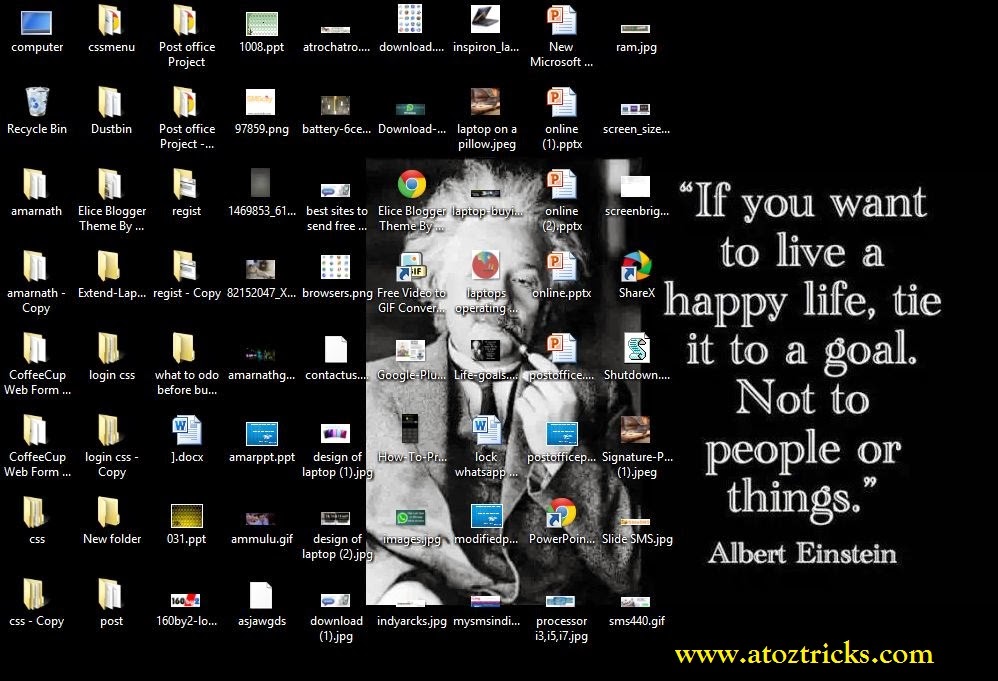
Every shortcut icon on Desktop  consume 20Kb of RAM.If there exists more number of icons on Desktop is going to effect on your system processing.Keep Less icons on Desktop for easy navigation.

less Desktop Icons

#6.Usage Of Proper Cooling System


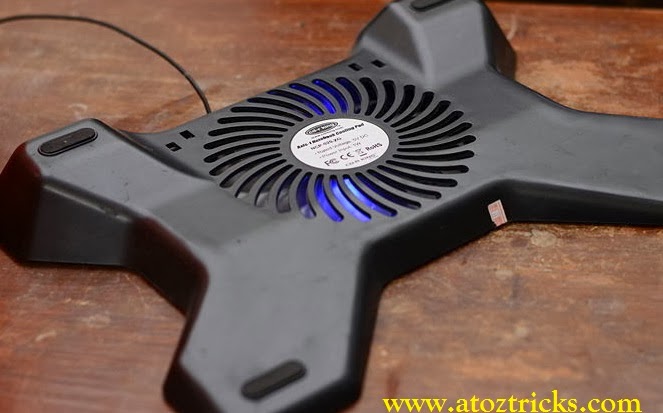
       Usage of Cooling fans will be best for avoiding the problem of OverHeating.you must and should provide good ventilation for PC’s and also maintain room cool to perform better.
.
Cooling FAsns

#7.Remove Internet Cache

Though there exists more number of Softwares but according to my point of View CCcleaner and

also Advanced System Care  are the best.

#8.Remove Unnecessary Start-up Applications

Is your System is taking more booting time for start up then start applying this tweak.Lesser the start up program then greater will be the system speed and its performance.
a).Press  “Windows + R”(Run Command shortcut)
For Windows 7
b)Run box will be opened.type “msconfig ” without quotes in the run box and hit enter.it will take you to the system configuration.Then  select on start up tab.
For Windows 8
By default start  up tab is available in task manager.
Afterwords Select the unwanted programs which are not to load the start-up and click on Disable.just restart your computer it will show a better improvement  compared to previous booting/start up time. 

start Up Applications

#9.Remove Temporary Files

Windows will store some temporary files whenever you are performed some task.Deleting those files will improve your System Performance during normal usage.
      Follow some steps to remove temporary files.
1.Type Windows+R
2.Type “%temp%” without quotes and it will take you to temporary files and folders location.
Just select all files and delete all the temporary files which are deletable and left it which are not deletable.
Remove Temporary Files to increase Sytsem Performance


#10.Better to Use a Genuine paid Anti-Virus

     Now a days No file is safe on Internet,So many people are creating virus to exploit thw windows OS.So better to use a good and Genuine Antivirus.

Share this until everyone of your friends must make their PC faster
Read More